WordPress powers over 40% of all websites worldwide, and with one-click installs and an intuitive dashboard, building your own site is far less technical than you might expect.
Key takeaways
- WordPress is user-friendly, highly flexible with thousands of themes and plugins, and scalable as your needs grow.
- You'll need a domain name, a WordPress-friendly hosting provider, a theme, and a handful of essential plugins to get started.
- Build your core pages first (Home, About, Services/Products, Contact) before adding extras.
- Always preview and test your site on desktop and mobile before publishing.
- Ongoing maintenance — updates, backups, and performance checks — keeps your site running smoothly.
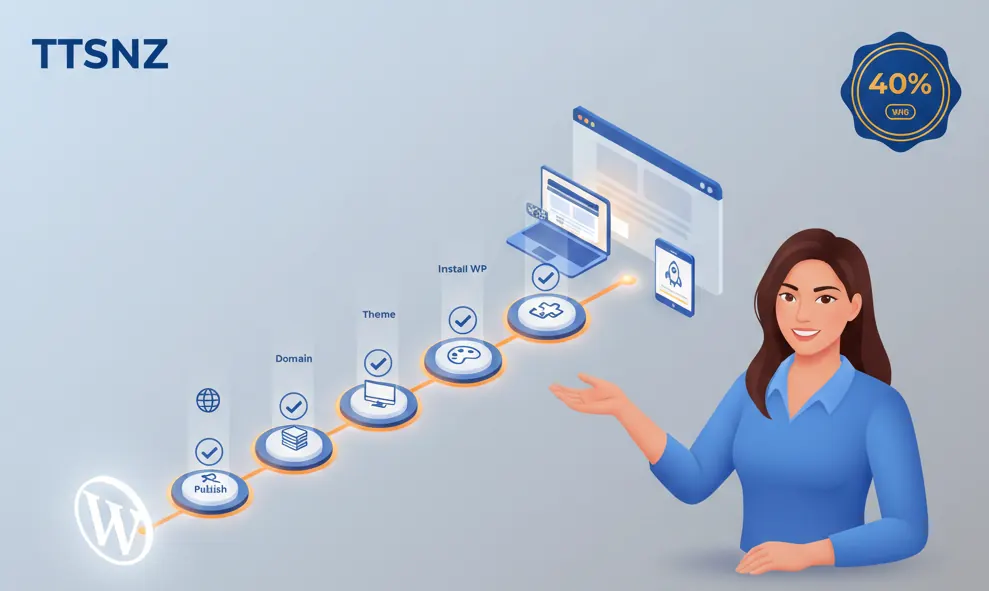
How to Create a WordPress Website: Beginner's Guide
Thinking about building a website? Welcome to the digital age, where WordPress powers over 40% of all websites worldwide. Whether you're showcasing a passion project, selling handcrafted alpaca sweaters, or sharing your dad jokes, WordPress makes it simple—no coding degree necessary.
Why Choose WordPress for Your Website?
With so many website builders like Wix, Squarespace, and Joomla, WordPress stands out as the ultimate all-in-one solution. It's user-friendly, highly flexible with thousands of themes and plugins, supported by a vibrant community, and scalable to grow with your needs. Thanks to one-click installs and intuitive dashboards, setting it up is far less technical than you might expect.
Step 1: Pick a Domain Name and Hosting Provider
Before building your site, select a memorable, easy-to-spell domain name and a reliable web hosting provider. Hosts like Bluehost, SiteGround, and Hostinger specialize in WordPress hosting, often bundling domain registration to simplify the process.
Step 2: Install WordPress

Installing WordPress is straightforward, usually a one-click process from your hosting control panel. Once installed, access your dashboard at yourdomain.com/wp-admin—this is your website's command center.
Step 3: Choose a Theme

Your theme controls your site's look and feel. Browse thousands of free and premium themes via Appearance > Themes. Beginner-friendly options like Astra, OceanWP, or GeneratePress offer lightweight, customizable designs that won't slow your site down.
Step 4: Add Essential Plugins
Plugins enhance your website's functionality. Start with Yoast SEO to boost your search rankings, Contact Form 7 for user inquiries, WooCommerce if you want to sell online, and WP Super Cache to improve site speed. Install plugins through Plugins > Add New and follow simple setup guides.
Step 5: Create Key Pages and Content
Build foundational pages: Home (a warm welcome), About (your story), Services/Products (what you offer), and Contact (how visitors reach you). Use the block editor in Pages > Add New to design your content effortlessly. Want a blog? Head to Posts > Add New and let your writing shine.
Step 6: Customize Navigation and Appearance
Set up your site navigation via Appearance > Menus to guide visitors easily. Use the Customize section to tweak colors, fonts, widgets, and decide if your homepage displays static content or latest posts. For advanced design, try drag-and-drop builders like Elementor.
Step 7: Publish and Maintain Your Site

Before publishing, preview your site on desktop and mobile, test all links, and optimize images for speed. Maintain your site by regularly updating WordPress, themes, and plugins, backing up your content, and monitoring performance to ensure everything runs smoothly.
Bonus: Explore Additional Features
Enhance your website with social media buttons, email newsletters, image galleries, multilingual support with plugins like WPML, and extended WooCommerce features. Customize your site just like adding your favorite toppings on a pizza.
Quick Recap
- Register domain & hosting
- Install WordPress
- Choose a theme
- Add essential plugins
- Create pages & posts
- Customize navigation & visuals
- Publish and maintain
Building a WordPress website is simpler than you think. Start small, learn steadily, and soon you'll have a site that's easy to find and even easier to love. Ready to create? Let your digital adventure begin!